 COME
COMECOME Help and Issue Reports: Choosing a game section after download
Choose the appropriate help topic and describe one clear symptom. You want the COME app and then a particular game category, rather than a separate APK for each cover image.
Start with the product's own help entry
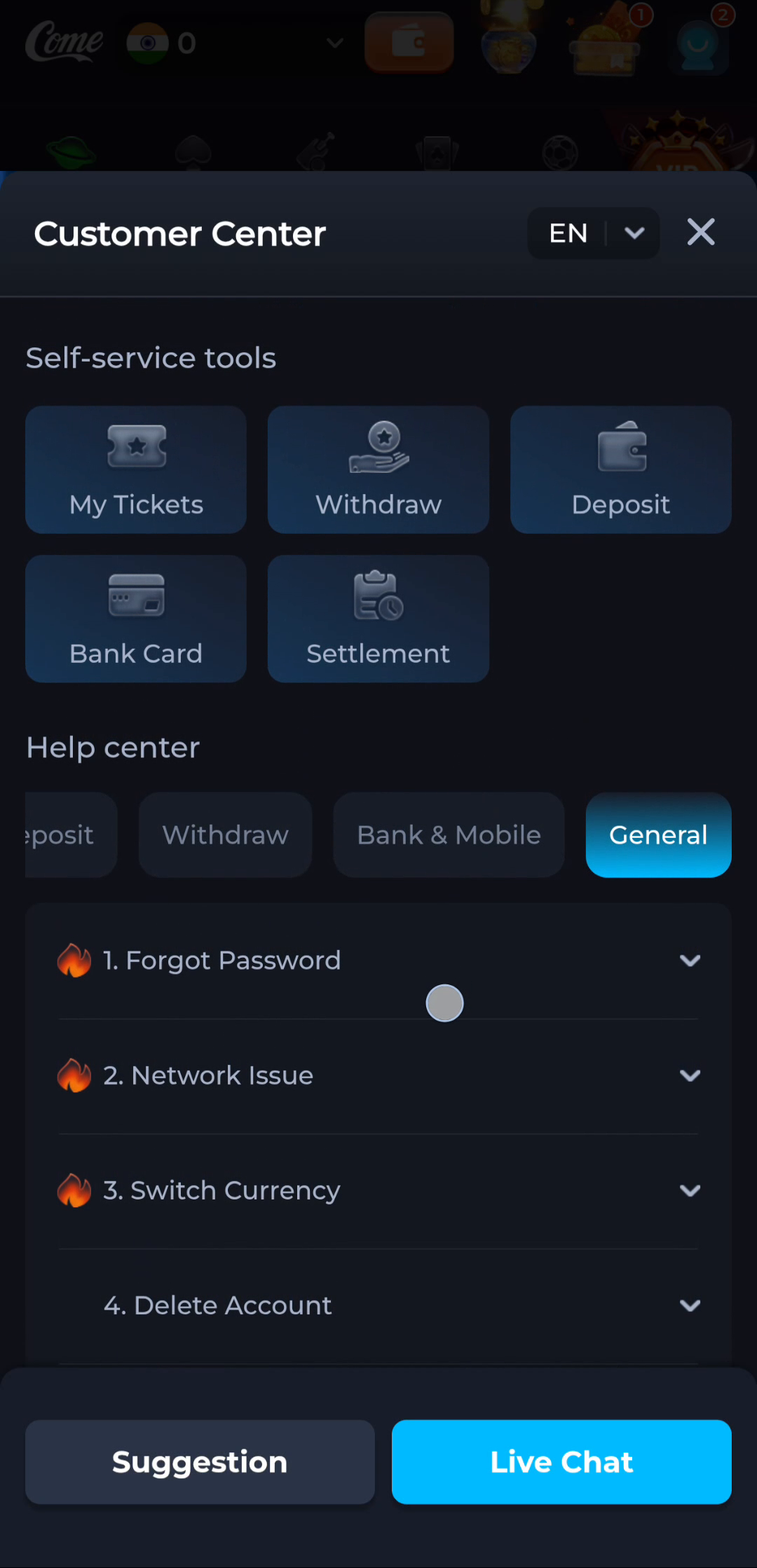
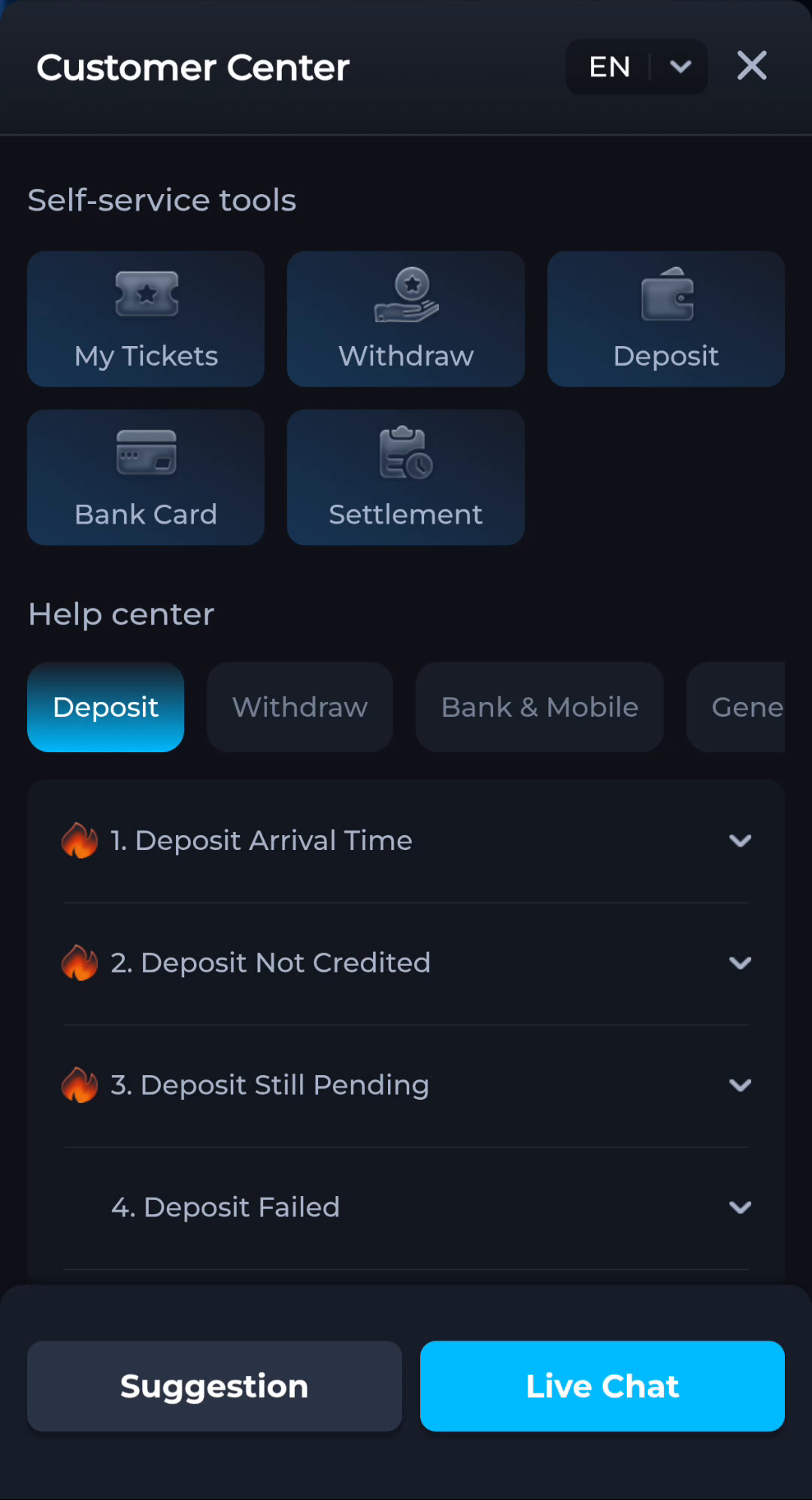
The COME profile menu includes Contact CS. Customer Center shows self-service tools and a Help center with categories, including General. The General list contains topics such as Forgot Password and Network Issue; the wider help interface also separates payment-related questions. Use the category relevant to the task instead of sending every problem through a download question.
These are interface labels, not a promise about availability, response time or the result of a case. Use the contact control in the product you are actually using. Do not substitute a phone number from an unrelated search result or social reply just because it mentions COME.
Describe the stage and the symptom
For an access problem, distinguish a forgotten password from a missing verification message or a connection failure. For an installation problem, include the Android message and whether a previous copy is installed. For a question about a record, inspect the relevant record and its displayed status before contacting help.
State the last action that worked, the next action that failed and the exact text shown. Add the approximate time and device information when relevant. Avoid drawing a conclusion such as account deleted when the only observation is that a sign-in screen is visible.
Share enough context without sharing secrets
A helpful screenshot shows the error and surrounding labels. Remove passwords, OTPs, payment PINs, full card details, unrelated notifications and unnecessary personal information. Keep account-specific identifiers inside the product's legitimate private support channel when needed, rather than posting them publicly.
Never install remote-access software or transfer money simply because someone claims it is required to unlock a download or answer a help request. This content website cannot change your app account and does not receive your sign-in details through these guides.
Follow the same case coherently
If the interface provides My Tickets, use your own relevant ticket to keep track of the conversation and status. Preserve the original issue description and add only material changes, such as a new error or a result on another trusted connection. Opening duplicate reports with different guesses can make the sequence harder to follow.
The task is complete when the issue is clearly routed and documented, or when the specific symptom is resolved and you can repeat the intended action. A support acknowledgement is not automatically a resolution, and a pending record should not be resubmitted repeatedly just to test connectivity.
Apply the steps to this situation
For choosing a game section after download, begin with this specific task: choose the appropriate help topic and describe one clear symptom.
- Name the last completed stage and the screen that has a problem.
- Choose the corresponding help topic or device-support route.
- Include useful details privately and redact personal information.
A good report makes the issue reproducible: what you tried, what appeared and what you expected next. Keep phone-system behaviour distinct from a product account record. A public download article cannot change an account, retrieve a password or settle an individual transaction.
Questions about this task
Can this guide recover my password?
No. Use the product's actual recovery or help controls; never send a password or OTP to this content page.
What is the most useful first detail?
The exact stage and error message, followed by the relevant device or record context.
A related next step
Choose a destination by the information it contains. You want the COME app and then a particular game category, rather than a separate APK for each cover image.
COME Categories and Account Menu: Choosing a game section after download